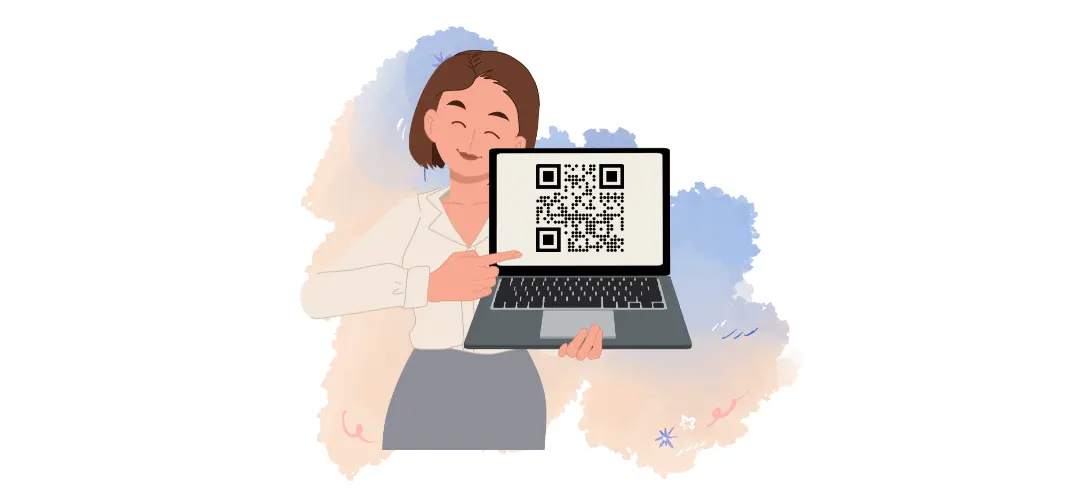
A QR Link is a short link you create in QR Cloud and put inside a QR code. It makes the code less dense and easier to scan, gives the link a readable name, and turns the code into a dynamic one: you can change where it leads after the code is printed. Below is why that matters and how to create and edit a QR Link.
What are QR codes?
Quick Response or QR codes are two-dimensional barcodes. They were first developed in Japan to track car parts in production, as an improvement on ordinary barcodes, and are now common in marketing as well. A QR code can hold text, a web address, a link to files or other content.
Most smartphone cameras read QR codes without an extra app, and many free generators create static codes. That's a big reason why so many businesses now use them.
What are QR Links?
QR Links are short links you create and manage in your QR Cloud account. You can shorten a long URL, give it a custom name and use it in a QR code, without paying for a separate URL shortener.
Why use QR Links for your QR codes?
Shorter URLs
Copy the share link of a file in Google Drive and you get a long string of random letters, numbers and symbols. Anyone who has tried to type a link like that from a poster knows how easy it is to make a mistake, and how hard it is to find. A short link fixes that.
Readable URLs
Shorteners usually generate a random string of upper and lower case characters. With a QR Link you can choose the name yourself, for example a campaign or product name. Your customers can see where the link goes, and you can see at a glance what each link is for.
Easier scanning
The more characters a QR code contains, the more modules (squares) it needs. A dense code is harder for a camera to read, especially when printed small or seen from a distance. A short URL produces a simpler code that phones read more reliably.
Dynamic QR codes
The QR code contains the short link, not the final destination. So you can change the destination URL as often as you like, and the printed code keeps working. You can reuse the same code for different campaigns, and you can see scan statistics for it.
How to create a QR Link
- On your QR Cloud dashboard, click Create Link and choose QR Link from the dropdown menu.
- In the first field, paste the URL you want to shorten.
- In the second field, type a custom short link name, or leave it empty for a generated one.
- Click Create.
You can now create a QR code for this short link. To send it somewhere else later, open the link's settings and enter the new destination URL. If your code points to a QR Page, you can also redirect that page under Advanced by pasting a new address into the Leap Link URL field.
This is what makes a QR code dynamic. The free plan includes 3 dynamic links, and scans are unlimited on every plan. If you use your own domain in the short link, you need the Expert plan.
Summary
Use a short, readable link inside your QR codes. The codes become easier to scan, and you can change the destination after printing. You can try QR Links on the free plan, which needs no credit card and includes a 7-day Pro trial.