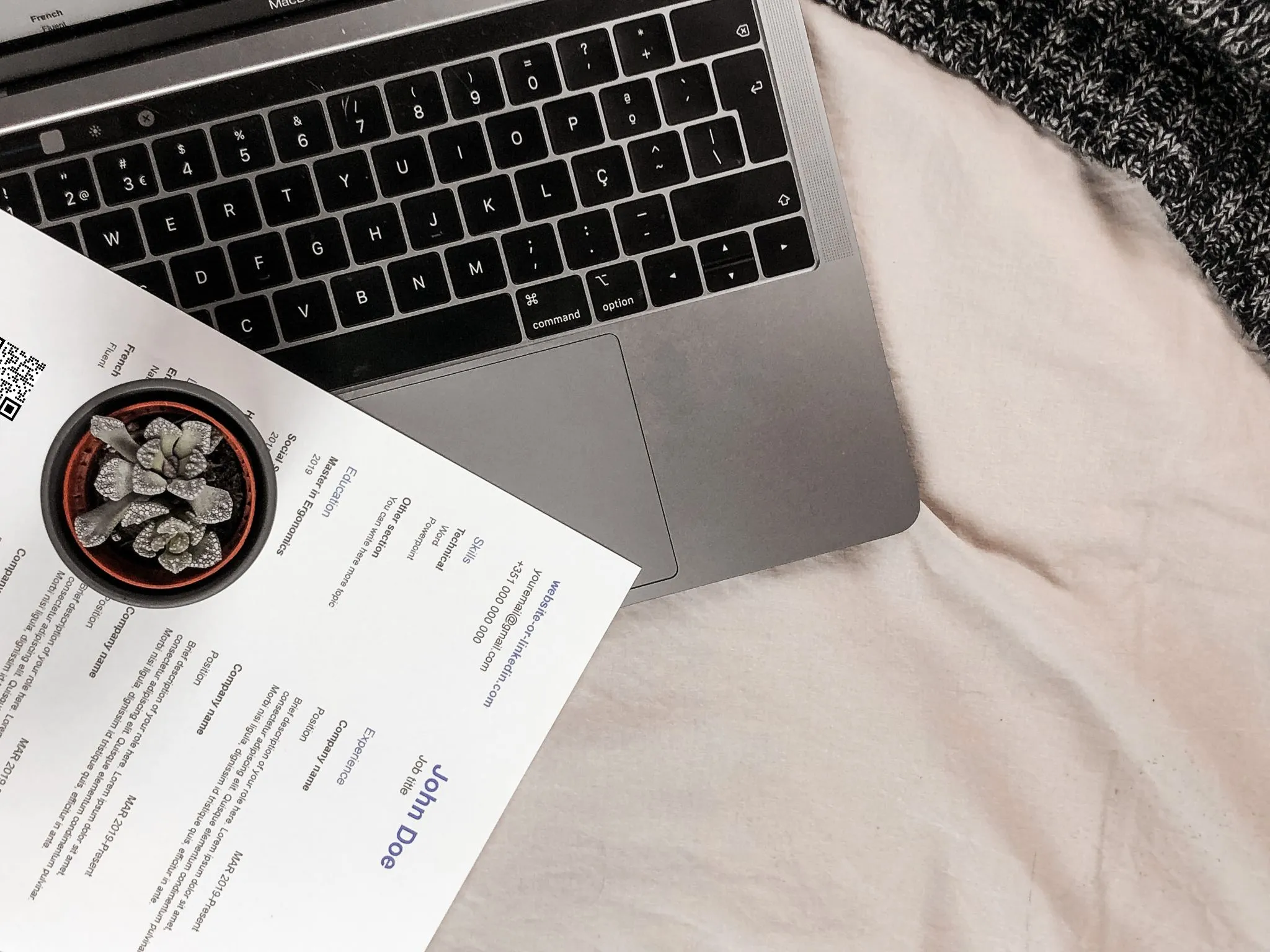
A resume QR code is a small code printed on your CV that links to more than the page can hold: your full resume, your portfolio, a video introduction or your contact details. The recruiter scans it with a phone camera and doesn't have to type a URL.
This guide covers what to link, two ways to create the code and where to put it.
What Can I Put in a CV and Resume QR Code?
A resume or CV is tailored to the job you apply for and has to fit on one or two pages. A QR code gives the reader a way to see more. Some ideas:
A digital copy of your resume or CV
The simplest option: link to an online copy of the document you submitted. It's handy when someone has a printout and wants to forward the file.
An extended resume or CV
If you have more experience and credentials than fit on two pages, link to a longer version. The interviewer can look at it on screen without printing anything.
Your portfolio
A portfolio shows samples of your work, which a resume can only describe. Link the code to your online portfolio.
Your references, with restricted access
Some employers ask for references, but your references may not want their phone numbers and email addresses openly visible. You can link to a document that is password-protected or shared only on request (most cloud storage services offer this) and give the password to HR separately.
Your video resume
Video resumes are short videos, often around a minute, in which you present your experience and education yourself or with animation. A video also shows how you communicate, before you're invited to an interview.
Two Ways to Create a Resume QR Code
You could also print a short link instead. A QR code saves the recruiter typing it and avoids typos in the address.
Option 1. A URL QR Code
This works for anything that's online: an online resume, a portfolio, a video or a reference list.
- Sign up and log in to your QR code generator.
- Create a new QR code and choose the type URL.
- Paste the link. If your resume is on Canva, Google Drive or a similar platform, set sharing to "anyone with the link can view" or similar.
- Adjust the design if you like.
- Test-scan the code.
- Download it and add it to your document.
When scanned, the code opens your online resume or CV.
Option 2. A File QR Code
If you don't want your resume on a public website, upload the file itself. In QR Cloud, choose the file/PDF QR code type, upload your resume as a PDF, adjust the design, test-scan the code and download it.
When scanned, the PDF QR Code opens your uploaded file. That's useful when HR wants to forward your resume to other departments or colleagues abroad. If you use a dynamic code, you can replace the file with an updated version later and the printed code keeps working.
Where Do I Use My CV or Resume QR Code?
On your resume or CV
Put it on the document itself, with a short label such as "Scan for my portfolio", so the reader knows what to expect.
On your business card
A QR code on your business card means your resume is always with you, for example at job fairs or networking events.
If you'd rather put a digital business card behind the code, read this guide.
On your job platform or social media profile
You can also add the code to the banner or images on your freelance platform or social media profile. Keep a real photo of yourself as the profile picture, and place the code where employers will see it without it replacing your face.
Bottom Line
A resume QR code gives recruiters a quick way to see your portfolio, a video or your full CV without typing a link. Make sure the linked page is public or accessible to the right people, label the code and test it before you send your application.