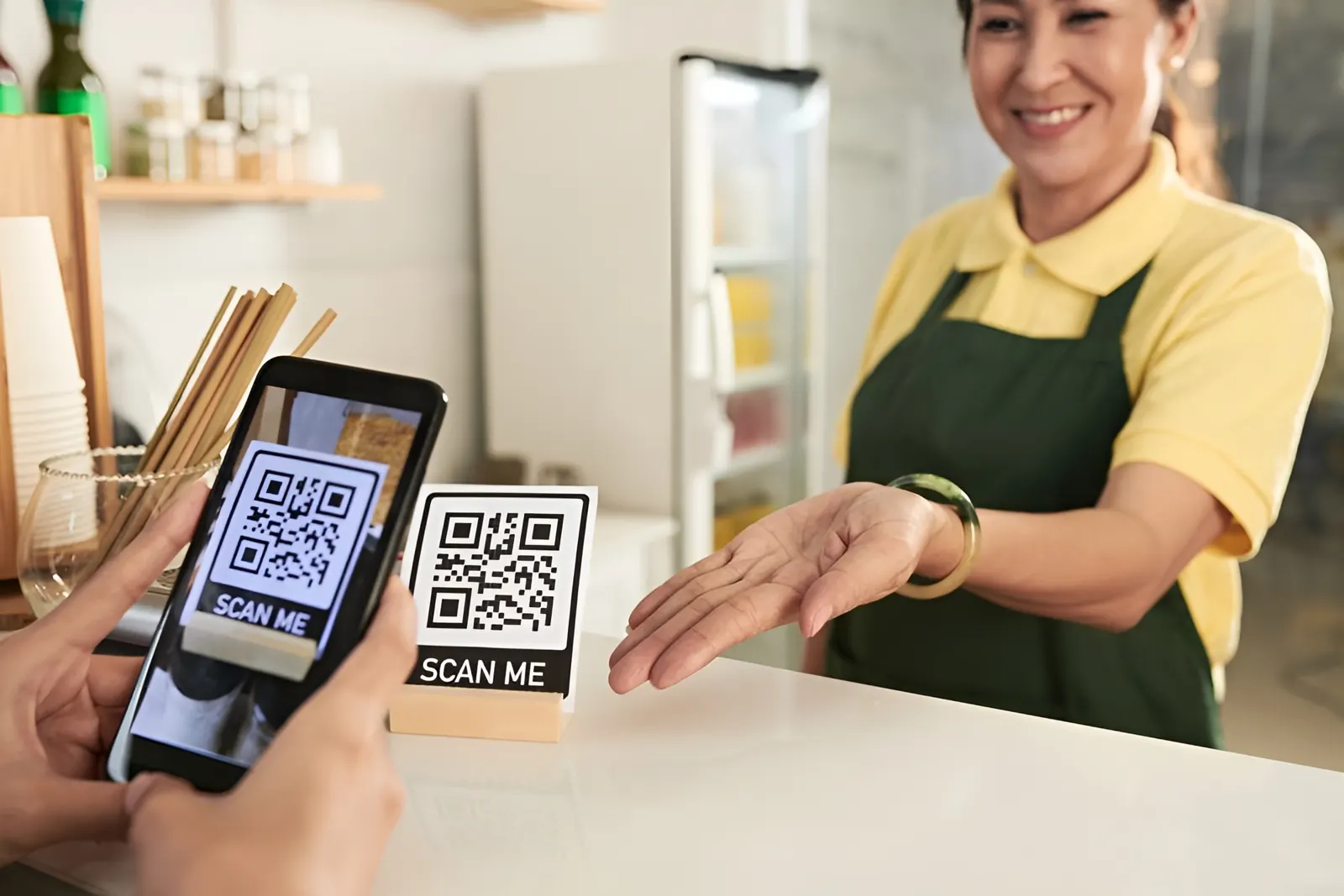
To collect customer feedback with a QR code, build a short online form (Google Forms is free), copy its link, and turn that link into a QR code you print at the counter, on receipts or at the end of a presentation. Customers scan, answer on their phone and you read the responses in one place.
This works in a shop or office as well as at a training course. Compared with phone calls, emails or paper surveys, a scan takes seconds, needs no printing of questionnaires and lets people answer when it suits them.
Create a free feedback form
The steps below use Google Forms. Any form tool that gives you a shareable link works the same way.
Step 1: Open Google Forms
Go to forms.google.com and sign in with your Google account. You will see a blank form option and a row of templates.
Step 2a: Start from a template
Pick a template next to the blank form, for example "Contact Information". It comes with a set of questions already in place; edit each one so it asks what you want to know.
When the questions are ready:
- Click Send in the upper right corner.
- In the dialog, choose the link (chain) icon. The other two icons are for email and embedding.
- Tick Shorten URL if you want a shorter link, then click Copy.
Step 2b: Start from a blank form
Click Blank to write your own questions.
- Click "Untitled form" to replace the title, and add a short description below it so people know what the survey is for.
- Click "Untitled question" and type your first question.
- Use the drop-down on the right of the question to choose the answer type, from short answer and multiple choice to checkbox grids, date and time.
- To add a question, click the plus icon in the toolbar beside the form. To reuse a question's format, click the duplicate icon at the bottom of that question and edit the copy.
- When you are done, click Send, choose the link icon, shorten the link if you like and click Copy.
Keep the form short. Someone scanning at a counter will answer a few questions, not a long survey.
Turn the form link into a QR code

With the form link copied, create the QR code:
- Go to qr-cloud.com and sign in, or sign up for a free account (no credit card needed).
- Create a new QR code and choose the URL type.
- Paste your form link.
- Optionally change the colours and add your logo in the middle. Keep strong contrast so the code scans reliably.
- Download the code as PNG or SVG and add it to your print material or post it online.
Make the code dynamic if you can. A dynamic code contains a short link whose destination you can change after printing, so you can swap in a new form next season without reprinting anything. It also shows scan statistics (time, country, device), which tell you how many people scan compared with how many actually submit the form.
If you would rather not use Google Forms, a QR Page from QR Cloud can hold a form block, such as an email or phone collector, plus contact buttons and links on one mobile page. For public reviews, QR Cloud's QR Reviews opens a star-rating page: higher ratings lead to your Google review form in one tap, lower ratings can send private feedback to you by email, and every customer can still choose to leave a public review.
Where to place your feedback QR code
- In your office or shop: at the counter or near the exit, when customers have finished their purchase and have a moment.
- At trainings and courses: on the last slide, on an acrylic stand on each table, at the exit or printed in the training kit.
- In printed material: on the back page of brochures, receipts or flyers. Size the code so it scans easily without dominating the design, and add a caption such as "We want to hear from you" or "Tell us what you think" so people know what they will get.
Test the printed code with two different phones before you hand anything out, then check your responses regularly and act on what customers tell you.