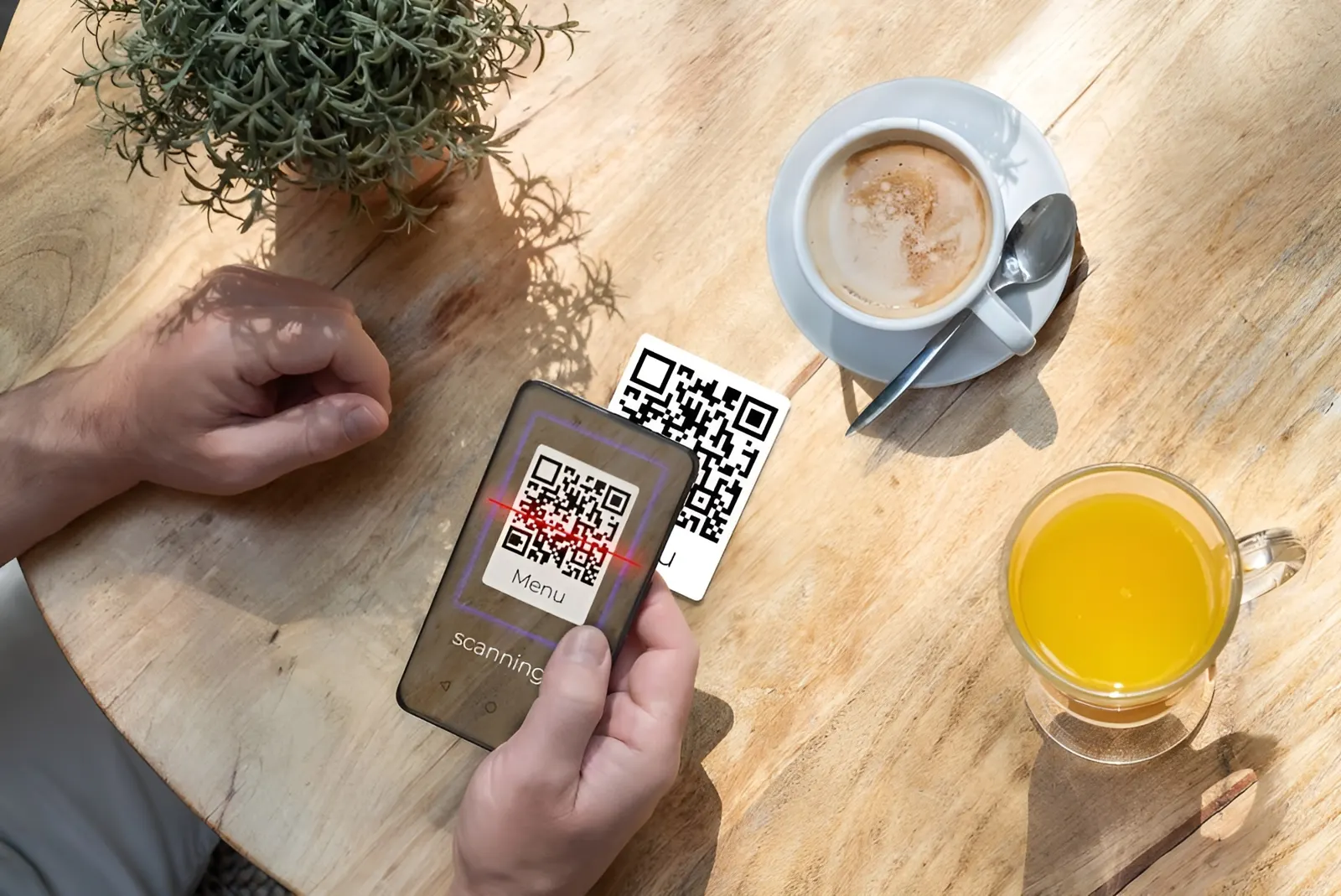
A QR code on the table lets guests open your menu on their phone, and a QR Page gives that menu (or your whole restaurant homepage) a mobile-friendly home you can edit at any time. Below you'll find what restaurants gain from QR codes, how to build a QR Page for your homepage or menu, and other places where a code earns its spot on the table.
Restaurants started using QR codes widely during the pandemic, when they needed ways to serve guests with less contact. Many kept them afterwards because they save time for guests and staff.
Benefits of Using QR Code and QR Page for Restaurants
A restaurant QR (quick response) code sends guests to your menu. They point their phone camera at it and see your dishes without waiting for a printed copy.
Contactless
Some guests still prefer to keep contact to a minimum. Staff can ask at the door whether a guest wants a printed menu or would rather scan the code.
Less printing costs for hardcopies of the menu
The more guests scan, the fewer printed menus you need. Good menus cost money to print, and they also need lamination or covers to survive spills.
Dynamic QR Codes are editable
Guests are disappointed when they order a dish and hear it's sold out. With a dynamic QR code, the code itself never changes, but you can update the menu and prices behind it whenever you like. Out of quinoa sushi? Delete it from your landing page.
No more waiting for the menu
During busy hours, a code on every table means guests don't wait for another table to hand back the menu. If you also offer online ordering, they can place their order without waiting for a server to come by.
Creating a QR Page for Restaurants
QR Page for Homepage
You can build a mobile-friendly homepage for your restaurant without buying a domain. Here's how:
-
Log in to your QR Cloud account. Click the “Create Link” button and choose QR Page from the dropdown menu.
-
In the pop-up, type a custom URL for your landing page, or leave it blank for a system-generated one. Click “Create QR Page”.
-
In the QR Page settings, adjust the look of your page. You can change the background colour or upload a photo of your restaurant as the background.
-
When you're happy with the design, click “Update”.
-
Now click Blocks. This is where you add and arrange the elements of your page.
Some blocks that suit a restaurant:
-
The Header block for your restaurant's name.
-
A Paragraph block for your address and opening hours.
-
A URL block with the link to your uploaded PDF menu.
-
An Email Collector block to gather sign-ups for your newsletter.
Add more URL blocks for your review profile or social media accounts.
QR Page for Standalone Landing Page
A PDF menu works, but guests have to zoom in and out to read it on a phone. A landing page built for mobile is easier to read.
To build one:
-
Follow the first three steps in the subsection above.
-
Instead of linking a PDF, add photos of your dishes with Image Grid blocks. Guests see what's available without downloading a file.
-
Finish with the remaining steps above.
Because the QR Page is editable, you can add a dish or change a price without uploading a new PDF or creating a new QR code. If the quinoa sushi is off today, disable it on your QR Page.
Creating a QR Code for Restaurants’ Homepage or Landing Page
Once your homepage or landing page is ready, create the QR code that points to it:
-
Copy the QR Page URL.
-
On your Dashboard, go to Total QR Codes and click “Create QR”.
-
Name your QR code, choose “URL” as the QR type and paste the QR Page URL.
-
Adjust the design (colours, logo, frame) and click “Create”.
Download the code and add it to your print materials: a sign by the entrance, table cards or small flyers.
Other Ways to Use QR Code and QR Page for Restaurants

With a menu page in place, you can add a few more codes. Pick one or two of the ideas below rather than putting a code on every surface.
Service Hours
Travellers often go looking for food before local restaurants open. A code by the door that shows your opening hours answers their question even when you're closed.
Reservations
Next to your hours, invite people to book a table. A simple Google Form can ask for the name, mobile number, number of guests, arrival time and whether they'd like to sit inside or outside. Confirm by text or call a few hours before the booking.
Order Form
Plenty of guests like ordering from a server. Others would rather order when they're ready without flagging anyone down. Keep your staff and offer a QR code that opens your order form, either a Google Form or an online shop with a cart. Once an order comes in, the ticket goes to the kitchen as usual.
Payment Option
Many shops and restaurants accept QR code payments. Offer it to guests who prefer to pay cashless, with a code at the counter for order-and-pay service or on the table so guests can pay when they're ready.
Reviews
Reviews influence where people decide to eat. A QR code that opens your page on Tripadvisor, Yelp or Facebook saves guests from searching for your restaurant themselves. With QR Reviews from QR Cloud, guests first rate their visit with stars: 4–5 stars lead to your Google or Tripadvisor review form in one tap, and lower ratings can send you private feedback by email. Guests can always choose to leave a public review.
Link to Your Social Media
A code on the table or menu that opens your Instagram or Facebook page lets guests follow you while they wait for their food.
Coupons
To reward your social media followers with a discount or a free upsize, post a QR code coupon on Instagram. Guests take a screenshot and show it when they order or pay.
A Secret Menu
Offer a secret menu that only guests eating in can see. Print the code without a caption and let curious diners find out what it opens.
Sharing your menu, bookings and reviews with one scan
QR codes and QR Pages let guests read the menu, book a table, order, pay and leave a review from their own phone, which frees your staff for the work only they can do. With a dynamic code, you can change what's behind each of them without reprinting.