To turn a PDF into a QR code, either upload the file to a cloud drive and put its link into a URL QR code, or upload the file to a QR code service as a file link so you can swap the PDF later without changing the code. This guide walks through both options and lists places where a PDF QR code saves printing.
What QR Codes Are
Quick response (QR) codes are barcodes that store data a smartphone camera can read. They were first used for inventory management and are now common in retail and marketing as well.
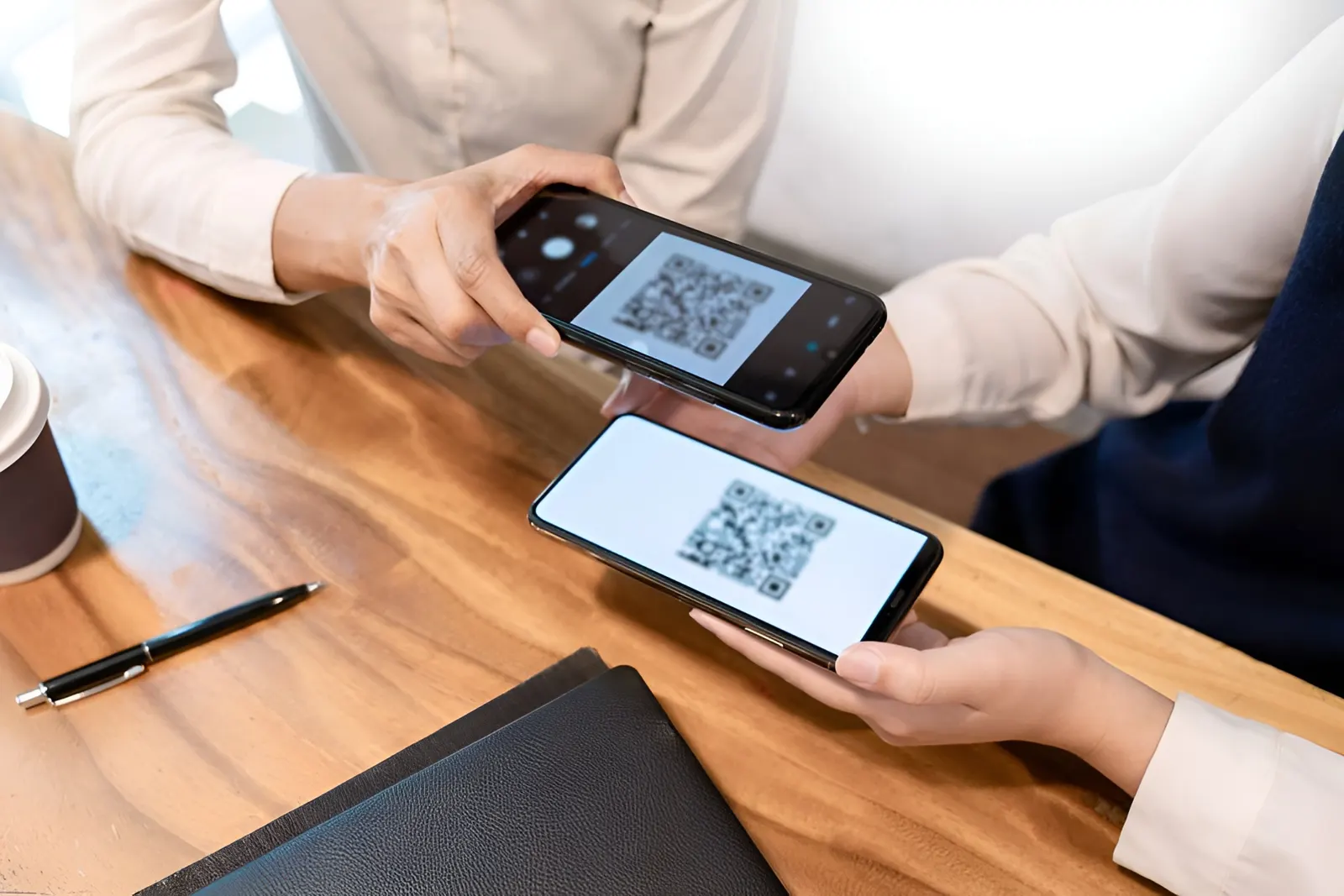
A PDF QR code is a QR code that opens or downloads a PDF document when scanned.
What PDFs Are
Portable Document Format (PDF) files keep a document's layout and appearance exactly as the creator set them, on any device. People can read a PDF but can't easily change it without extra software, which is why PDFs are a common way to share finished documents.
You could share a read-only Word document with embedded fonts, but a PDF does the job with fewer steps.
How to Turn a PDF Into a PDF QR Code
First, get your document into PDF format. Most word processors, spreadsheet and presentation apps can export to PDF. For a paper document, scan it and save the scan as a PDF.
Then choose one of two routes.
Option 1: The URL QR Code Route
This is the simpler option. Upload your PDF to a file-sharing service such as Google Drive, Dropbox or OneDrive, make it viewable by anyone with the link, and copy the URL.
-
On the dashboard of your QR code generator, tap “QR Codes”.
-
You'll see the QR codes you created before. Tap “Create New”.
-
Fill in the fields. For QR Type, select URL and paste the link you copied.
-
Customise the design if you like: colours, a frame or your logo in the middle.
-
Tap “Create”, then test-scan the code before you download or print it.
When someone scans the code, the PDF opens from your file-sharing service. The catch: a URL QR code created this way is static. If the file moves to a new link, you'll need a new QR code, and every printed copy of the old one becomes useless.
If you update the file often, use a file link instead.
Option 2: The File Links Route
A file link lets you upload the PDF directly and gives the QR code a dynamic short link. On QR Cloud, that short link is what makes a QR code dynamic.
-
On your QR Cloud dashboard, hover over Links and click “File link”.
-
Upload your PDF in the window that appears.
-
Enter a short URL if you want a custom one, or leave it blank for a random one.
-
Click “Create File URL”.
-
Copy the URL.
-
Go to QR Codes and create a URL QR code with that link.
To update the document later, upload a new file in the File Link settings. The QR code stays the same.
How and Where to Use PDF QR Code
A PDF QR code fits anywhere people need a document they'd otherwise ask you to print. Some ideas:
Libraries
-
Manual of Operations for staff
-
Selective Dissemination of Information
-
New Acquisitions
-
Database log-ins
Schools
-
Student guide/rule book
-
Parent’s waiver for out-of-school field trips
-
Required readings
-
Class syllabi
-
Student paper e-copy
-
Forms
Cafés and Restaurants
-
Downloadable menu
-
Coupons
-
Monthly E-magazine
-
Free recipes
-
Government permit/license to operate
Bookstores
-
Price lists
-
New books
Retail Stores
-
Catalogs
-
Price lists
-
Monthly features
-
Standard Operating Procedures
Offices
-
Employee’s guide book
-
Forms
-
Policy Manual
Museums and Galleries
-
Maps
-
Brochures for exhibits
Books
-
Accompanying guide
-
Free e-book
-
Guide questions for book clubs
Manufacturers
-
Standard Operating Procedures
-
Forms
Why Turn Your File into a PDF QR Code?
You could simply share the file's URL. A QR code makes that link usable on paper, where nobody can click.
Less printing costs on your part
A school that needs a signed waiver from every student, or an office that updates a long policy manual every year, no longer has to print a copy for each person. People download the file and print only what they need, so you spend less on paper and ink.
Your customers can skip placing a request
Instead of queuing at a desk for a form, people scan the code from a poster or counter sign and download the file to read or print at home. Put a short call to action next to the code so they know what they'll get.
Your customers won’t risk typing a wrong character
A long URL with mixed capitals and symbols is easy to mistype, and people give up when the page doesn't load. Scanning skips the typing.
Print the short URL next to the code as well, for people reading on a laptop.
If you created the PDF QR code with a dynamic File Link, you also get the following.
The ability to edit your file anytime
When the document changes, upload the new version. The printed QR codes keep working and now open the updated file.
The ability to track the number of scans
A dynamic QR code records the time of each scan along with the country, the device and the operating system, so you can see how often your PDF is opened and from where.
Reusable PDF QR Code
The same code keeps working through every update, so you don't have to print and post new copies each time the file changes.
Sharing documents with one scan
Offices, schools, libraries and shops can use a PDF QR code to hand out documents and forms without printing a stack of copies. Use a URL QR code for a file that won't change, and a dynamic file link for one you'll update.